How to Keep the Same Character in AI Video — the One-Photo Method
You generate a clip of your character at the beach. It looks great. You generate the same character at a café… and it's a different person. Sound familiar? That's character drift, the most common complaint about AI video — and it's structural: normal image-to-video animates whatever photo you feed it, so every new scene means a new starting image, and every new starting image means a slightly different face.
Kling O3 (Kuaishou's latest flagship) fixes this with a different architecture: you give it a reference photo of your character, and it generates the scene around them. The face, hair and outfit come from your photo every single time. We just launched a dedicated Character Consistency page built on it — here's how to use it, and how to get the strongest lock.
The 3-step workflow
See it before you try it — one character photo + one scene photo = one video
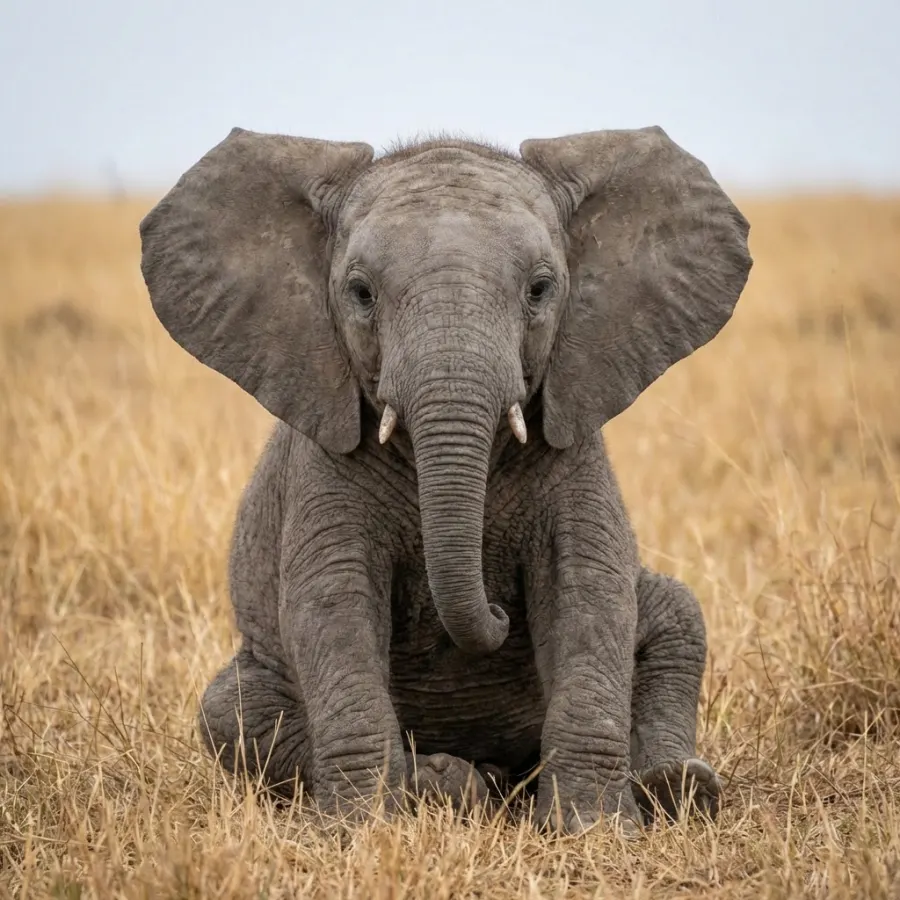 👤 Character photo
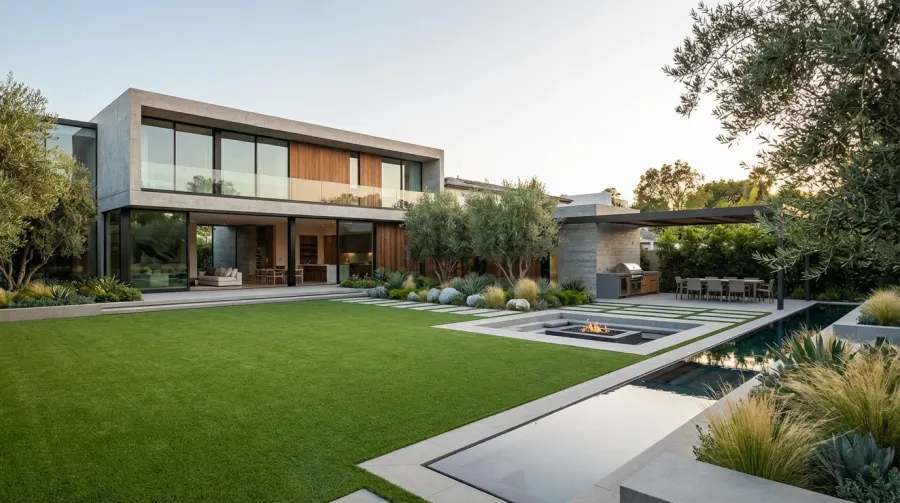 🏞️ Scene photo
No editing, no masks — the model staged the girl and the elephant from two ordinary photos. Source: Kling O3 official demo runs.
Step 1 — Upload one photo of your character
On the Character Consistency generator, the left slot is your character. One photo is all it takes — the best anchors are sharp, well-lit, front-facing shots with the face unobstructed. Pets and mascots work exactly the same way as people.
Step 2 — (Optional) add a scene photo
The right slot is a scene: upload a photo of a place — a restaurant, a landmark, your living room — and your character appears in it. Skip it and the scene is built from your prompt alone. This is the key difference from a normal generator: the who and the where are two separate inputs, so you can vary one without breaking the other.
Step 3 — Describe the scene and generate
Write where your character is and what they're doing: "She is eating takoyaki on a Tokyo street at night, neon lights, laughing at the camera." Pick 5, 10 or 15 seconds, toggle audio, and generate. Then — and this is the trick — reuse the exact same character photo for the next scene. Snow day, hotpot dinner, concert. Same face, new world.
Ready-made scene prompts to steal
Getting the strongest character lock
- Anchor photo quality beats quantity. One sharp frontal photo outperforms several blurry ones. Avoid sunglasses, extreme side angles and group shots.
- Light the face. The model reads identity from the face; a backlit or heavily shadowed photo weakens the lock.
- Describe the character's actions, not their appearance. The photo already defines how they look — spend your prompt on what they're doing and where.
- Extreme motion softens the lock. A quiet dinner scene holds identity better than a backflip. If the face drifts in an action shot, dial the motion down.
- Keep the same photo across the series. Consistency comes from reusing the identical reference — don't re-crop or re-filter it between scenes.
What it costs
On img2.video, Kling O3 character-consistent clips start at 35 credits for 5 seconds (40 with native audio); 10s is 65/80 and 15s is 95/120. Every failed generation is refunded automatically, and the same balance works across all our models — so you can compare Kling 2.6 or Veo 3.1 on the same account.
FAQ
How do I keep the same character in AI video?
Upload one clear photo of your character to the Character Consistency page, then describe any scene. Kling O3 locks the face and outfit from your photo into every clip. Generate as many scenes as you like — the character stays the same as long as you reuse the same photo.
Do I need multiple photos of my character?
No — one clear, front-facing photo is enough. Optionally you can also upload a scene photo (a place, a background) if you want your character to appear in that exact location; otherwise the scene comes from your text description alone.
What makes character consistency different from normal image-to-video?
Normal image-to-video animates the photo you give it — change the scene and you get a different-looking person. Character consistency separates the WHO (your character photo) from the WHERE (the scene). That is why you can put the same character in a snowfield, a hotpot restaurant and a concert without the face drifting.
How much does it cost on img2.video?
From 35 credits for a 5-second clip without audio, 40 with native audio (10s: 65/80, 15s: 95/120). One account, one balance — credits work on every model. Failed generations are refunded automatically.
What photos give the best character lock?
Sharp, well-lit, front-facing shots with the face unobstructed. Avoid heavy sunglasses, extreme side angles, motion blur and group photos. A passport-photo-style framing of one person (or pet) is the strongest anchor.
Can I use my pet or a mascot?
Yes — Kling O3 elements work for people, animals and objects. A mascot or product character locked across ads is one of the most popular uses.
Is it safe to upload photos of real people?
Only upload photos you have the right to use. Prompt screening and safety checks run before anything is charged, and photos are stored privately, used only for your generations, and auto-deleted after 7 days. We never train models on your photos.
Try it with one photo
Your character, any scene, from 35 credits
Open the Character Consistency generator →